Elongator Tool
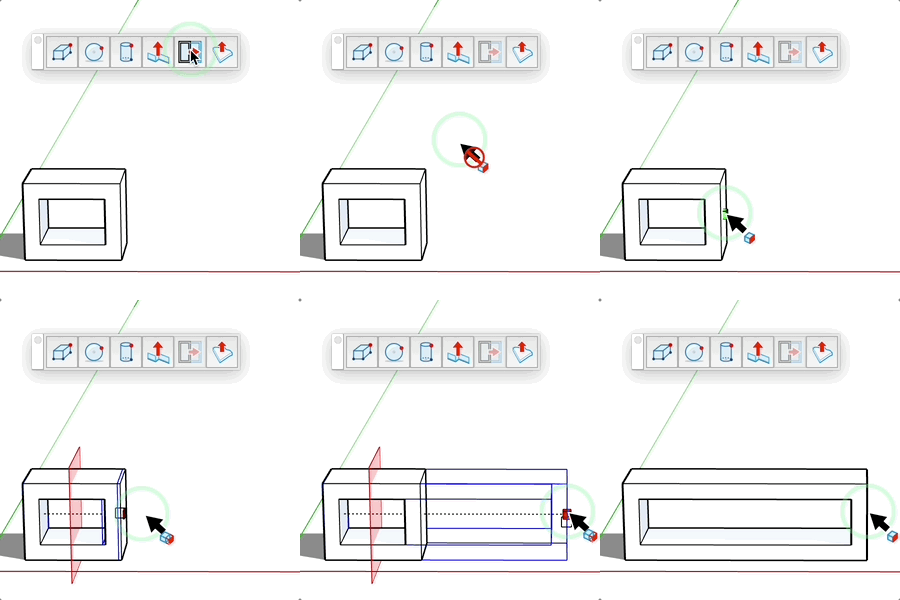
Lengthen or shorten a component or group along one of its axes without distorting it: the geometry is cut by a plane and only the part beyond the plane is moved.
How It Works
- Hover a component or group (or select it before launching the tool to work on it only)
- Hover a face of its bounding box: the handle (cube) at the center of the face and the cutting plane are displayed
- Click to start stretching, then move the mouse along the axis or type the new dimension
- Click (or press Enter after typing) to apply
Moving the Cutting Plane
- In 1-cut "from edge" mode, three cutting planes (one per axis) are displayed on the instance
- Click a plane, move the mouse and click again to place it; or click-and-drag, then release
- Placement follows inferences: snap to an edge or vertex to cut exactly where you want
- The most opaque plane is the one used for the stretch
- Near the face handle, the handle takes priority (it turns red)
Keyboard Controls
- Ctrl (Option on Mac) = Toggle between "from edge" and "from center" modes
- Alt (Cmd on Mac) = Toggle between 1 cut and 2 cuts
- Input field = Before clicking: number of cuts (1 or 2); after clicking: new final dimension
- Esc = Cancel the operation
Tips
- "From edge" mode: the opposite face stays in place, the object stretches on one side only
- "From center" mode: the object stretches symmetrically on both sides
- 2-cut mode: the object is cut at one third and two thirds, ideal to preserve both ends (frames, moldings…)
- In 2-cut or "from center" mode, the cut stays at the center of the object
- Other instances of the same component are previewed and modified too
- Locked elements are ignored
- A handle hidden by geometry is shown as a small icon
- Preserves details, unlike the Scale tool