Door Tool
Insert doors into your walls: they are placed on the floor and the opening is cut automatically.
How it works
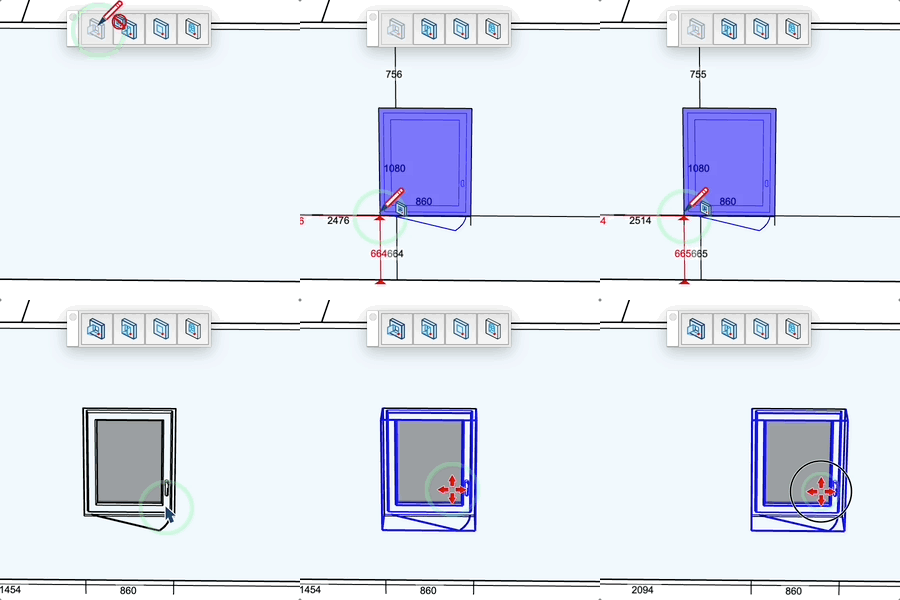
- Choose a door in the library, or build one with the windows configurator
- Hover a vertical wall face: the door is set at the bottom of the face and its distances to the wall edges are displayed
- Click to insert the door, the opening is cut in the wall
- Double click: after a first insertion, a pink marker proposes the same horizontal distance from the reference corner; double click to place the next door there
Keys
- Option (Mac), Ctrl (PC) = Flip the orientation (opening direction)
- Shift = Lock / unlock the reference corner of the hovered face
- Esc = Cancel the operation
Input (VCB)
- Not hovering a face: type the reveal depth then Enter
- Hovering a face: type the horizontal distance then Enter to place it exactly from the reference corner (vertical distance is forced to 0)
Tips
- Distances to the wall edges are displayed in real time (red: distances to the reference corner, black: remaining dimensions)
- A black dot marks the reference corner, a red dot means it is locked
- The cursor shows whether insertion is possible, impossible, or will replace an existing element
- Click on an existing element to replace it with the selected model: its position, attributes and tag are kept
- New doors are placed on the "Joinery" tag
- The toolbar button reopens the last picker used (library or windows configurator)
- No need to press Shift to type values: just type them (Shift locks the reference corner)