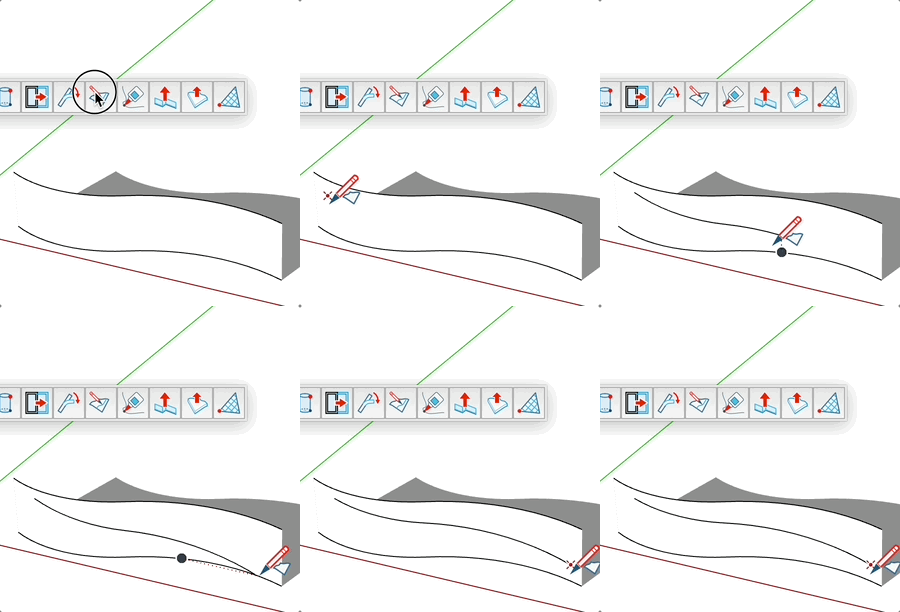
Line on Surface Tool
Draw lines directly on faces of your model, following the geometry of surfaces.
How to use
- Activate the Line on Surface tool
- Click on a face to set the starting point
- Move the cursor to the same face or another face
- Click to create a line that follows the surface geometry
- Continue clicking to add more segments, or start a new line elsewhere
Features
- Surface following: Created lines follow the geometry of faces
- Length: The segment length is displayed in the status bar
- Inference: Uses SketchUp's inference system to facilitate alignments
Keys
- Escape = Cancels the current operation
Tips
- You can draw lines between different faces
- The tool displays a preview of the line before creating it
- Created lines become part of the geometry of the faces they're drawn on
- Ideal for creating markings or details on complex surfaces