Splitter Tool
Split a face into segments along two perpendicular axes.
How it Works
- Without hovering over a face, enter the gap width between divisions
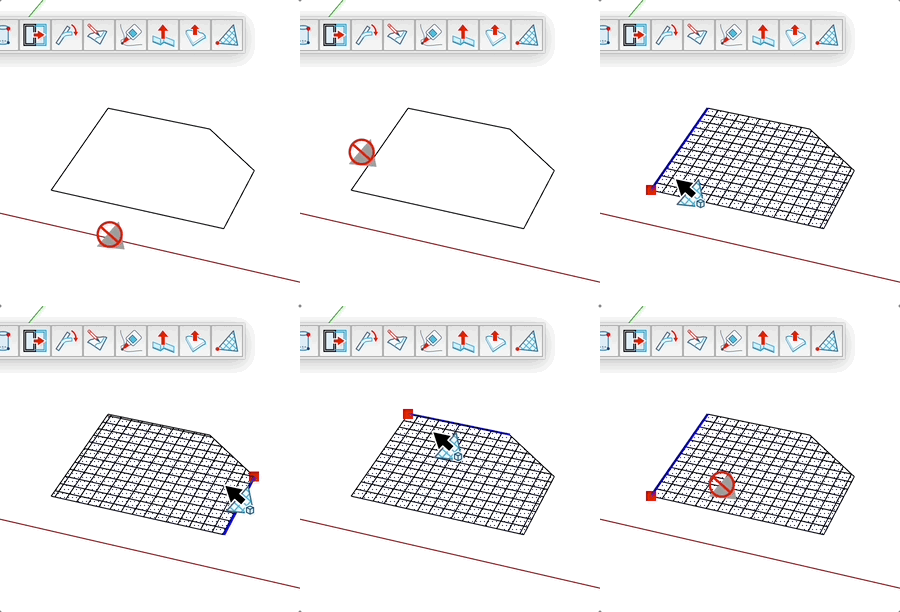
- Hover over a face to split
- The nearest edge defines the first division axis
- The nearest vertex becomes the starting point
- Click to create the division
Mouse Controls
- Hover = Preview the division on the face
- Left Click = Create the division
Keyboard Shortcuts
- Shift = Lock the starting point
- Alt (Mac) / Ctrl (Windows) = Toggle group mode
- Esc = Cancel operation
Dimension Input
You can enter dimensions in the Value Control Box (VCB):
- Format: length;width
- Example: 1m;20cm
Group Mode
Group mode allows creating the division in a separate group:
- Disabled = Divisions are created directly on the face
- Enabled = Divisions are created in a group
Tips
- The division follows the edge closest to your cursor
- The starting point can be locked with Shift for more precision
- The preview shows the starting point in red and axes in blue
- Default dimensions are saved between uses